Search games, articles, guides...CtrlK
Sign InGet Started
Boost FPS and cut stuttering in Silent Hill: Townfall with these optimized PC graphics settings for every hardware tier.

Written by Larc
Content Writer
See more GAMES.GG guides on Google
Add us as a preferred source and our guides show up first in your results.
Silent Hill: Townfall Guide: How to Get Flashlight & Batteries
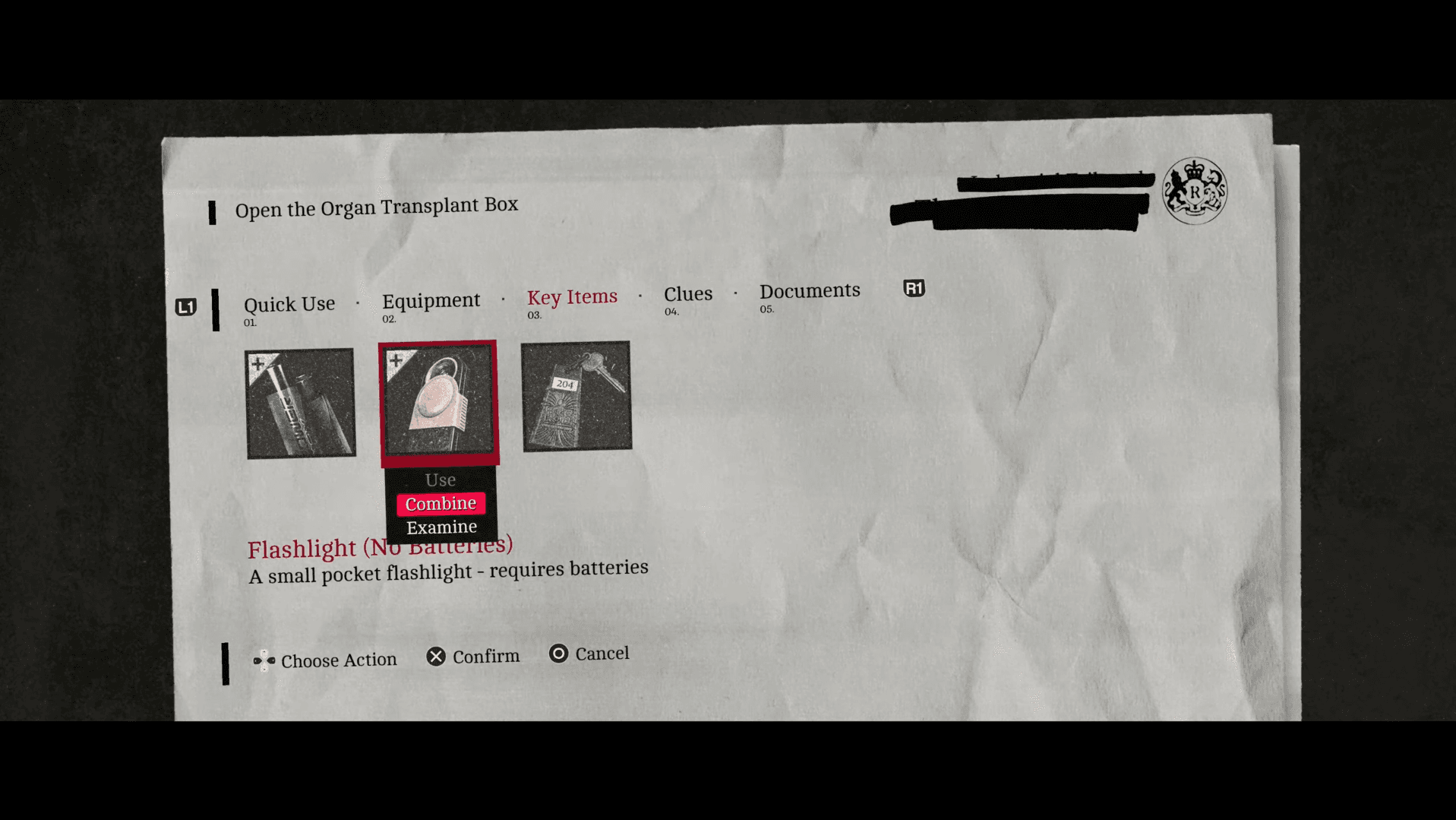
Find the flashlight and AA batteries in Zoe's House, combine them, and learn how enemies react to your light on each difficulty.
Silent Hill: Townfall Guide: All Phone Numbers Locations
Every phone number in Silent Hill Townfall, where to find each one, and how to unlock the Cold Calling trophy.
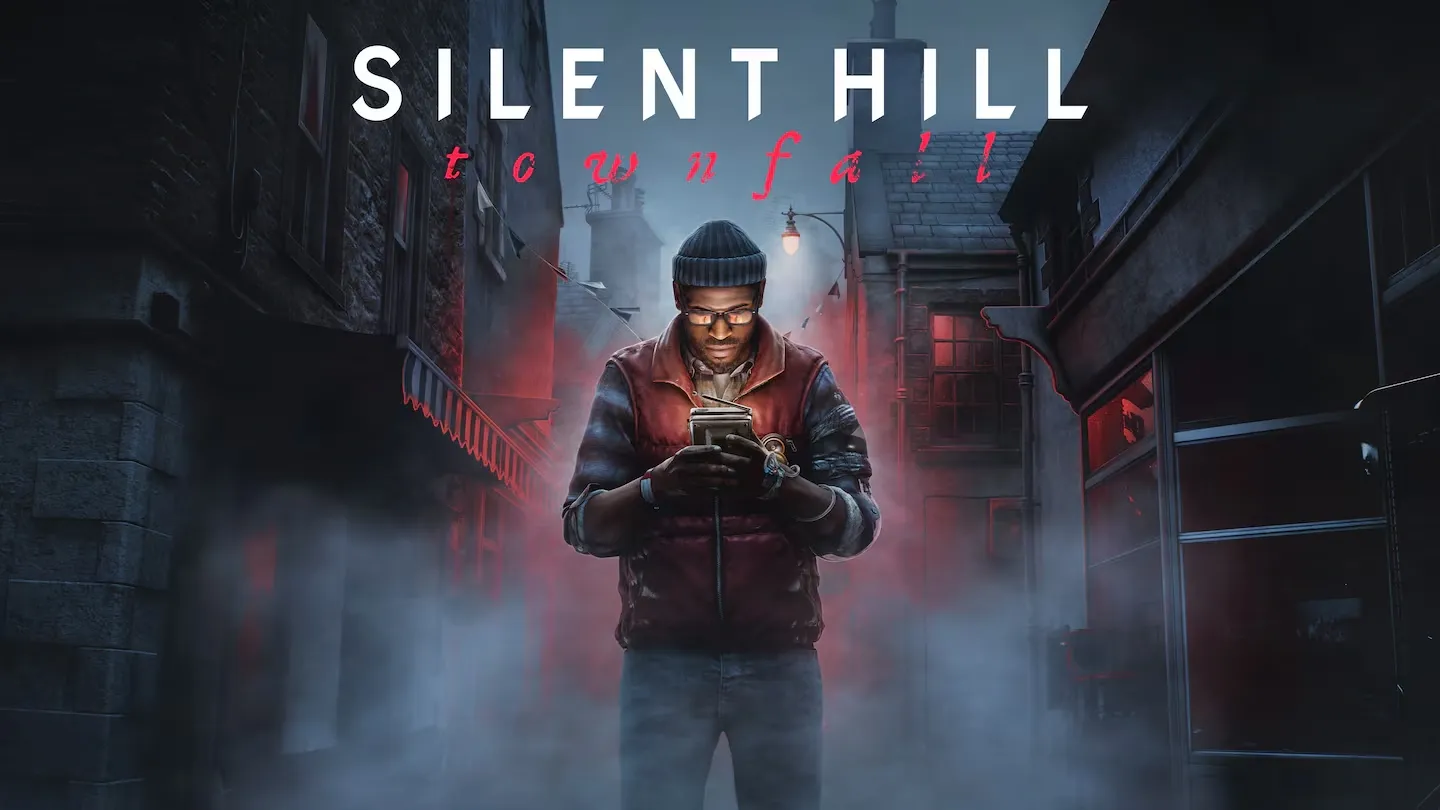
Silent Hill: Townfall Exact Release Date & Start Times
Silent Hill: Townfall launches September 24, 2026. Get every regional start time and early access details here.
Silent Hill: Townfall runs its atmosphere through dense fog, dynamic lighting, and layered environmental detail. That combination looks great and punishes underpowered hardware in equal measure. If your frame rate is dipping or the game keeps stuttering, a few targeted adjustments will make a bigger difference than lowering everything to minimum at once.
This guide walks through the best graphics settings for stable performance, explains which options to prioritize when cutting quality, and covers the official PC requirements so you know exactly where your hardware stands.
The configuration below targets a stable 60 FPS. Your actual frame rate depends on your hardware, but these settings give you a reliable baseline to build from. Players with stronger GPUs can push individual options higher once the frame rate is confirmed stable.
| Graphics Setting | Recommended Configuration |
|---|---|
| Display Monitor | Primary Monitor |
| Window Mode | Fullscreen |
| Display Resolution | Native Resolution |
| Upscaler | DLSS / FSR / TSR |
| Upscaler Quality Mode | Balanced |
| VSync | Off |
| Frame Rate Limit | 60 FPS |
| Fog Quality | Low |
| Texture Quality | Medium |
| Shadow Quality | Low |
| Reflections | Low |
| Global Illumination | Low |
| Post Processing | Low |
| Raytracing | Off |
| Override Field of View | Off |
| Letterbox | Off |
| Motion Blur | Off |
Start with your monitor's native resolution. Running below native while upscaling is disabled wastes image quality for no real performance gain. Once you have native resolution locked in, enable whichever upscaler your GPU supports: DLSS for NVIDIA RTX cards, FSR or TSR for everything else.
Set the upscaler to Balanced mode first. It reduces the internal rendering resolution enough to recover meaningful frame rate headroom while keeping the image sharper than Performance mode. If you are still dropping frames after other adjustments, switch to Performance, but expect softer detail on distant objects.
Leave VSync off initially. It adds input latency and can cap your frame rate below your target if the GPU briefly dips. If you see screen tearing, enable your monitor's variable refresh rate feature instead. A hard 60 FPS cap helps smooth out frame pacing on hardware that can hit that target consistently. If 60 FPS is out of reach, set a lower cap you can actually hold rather than leaving the rate uncapped and getting uneven framing.
Silent Hill: Townfall Guide: Best PC Settings for Max FPS
Not every option carries the same GPU cost. These four are worth targeting before you touch anything else.
Fog is the defining visual element of Silent Hill: Townfall, and volumetric fog effects are genuinely expensive to render. Low is the right starting point for performance builds. If your frame rate stays stable after other reductions, Medium is worth a test since it recovers some of the atmosphere without the full GPU cost of High.
Both settings increase GPU workload noticeably. Keeping them on Low cuts rendering load while preserving enough environmental detail to navigate and read the scene properly.
Turn Raytracing off entirely for any performance-focused setup. The visual improvement does not justify the frame rate cost unless you have a high-end GPU with headroom to spare. Global Illumination on Low is fine, particularly on hardware near the minimum requirements.
Medium works well as a starting point. If you have a GPU with ample VRAM, High is worth testing. If you notice stuttering or textures loading slowly, drop back to Medium or Low and check whether VRAM usage is the culprit.
If the settings above do not resolve your issues, work through these fixes one at a time.
Check these before adjusting settings. If your hardware sits at or below minimum, targeting 30 FPS on Low settings is more realistic than chasing 60 FPS.
| Component | Minimum | Recommended |
|---|---|---|
| OS | Windows 11 64-bit | Windows 11 64-bit |
| CPU | Ryzen 5 3600 / Intel i7-8700K | Ryzen 7 5700X / Intel i7-9700K |
| RAM | 16 GB | 32 GB |
| GPU | RTX 2060 Super / RX 6600 | RTX 3080 / RX 7800 XT |
| DirectX | Version 12 | Version 12 |
| Storage | 75 GB | 75 GB |
The minimum spec targets 1080p at 30 FPS on Low settings. The recommended spec targets 4K at 30 FPS on High with upscaling set to Balanced. Neither target guarantees 60 FPS, so players near the minimum end should set a 30 FPS cap and prioritize stability over raw frame rate.
Once your performance is sorted, there is a lot more to explore in St. Amelia. The game has collectibles, environmental puzzles, and hidden mechanics that reward thorough exploration. Check out the full Silent Hill: Townfall guides collection for walkthroughs covering all Resource Container locations and the CRTV signal and RGB alignment guide if you get stuck on any of the game's puzzle mechanics.