
Verify Steam files first to fix the Failed to load il2cpp error in Rob Run, then check whether Windows blocked a game file.
This startup message means the client could not load its main code library, which can involve GameAssembly.dll. Missing files, runtime problems, and security blocks need different repairs. Work through the checks below one at a time, and stop when the game launches. Use the Windows logs to identify a block before considering changes to your protection settings.
Repair the Steam installation first
The IL2CPP error happens locally before the game connects to its servers. Changing servers or waiting for an outage to end will not repair it.
If the game opens and later crashes or disconnects, follow the Rob Run PC crash and connection fixes instead. The steps here address the specific code-loading failure that prevents startup.

Verify the game files
Steam's file check replaces damaged or missing installation files without downloading the entire game. Start here before committing to a full reinstall.
- Close Rob Run and exit Steam completely.
- Reopen Steam and install any pending Rob Run update.
- Right-click Rob Run in your library and select Properties.
- Open Installed Files and select Verify integrity of game files.
- Wait for verification to finish, then launch the game through Steam.
Use Steam for each launch attempt while troubleshooting. Avoid starting the executable directly or using an old shortcut, so each check uses the same launch method.
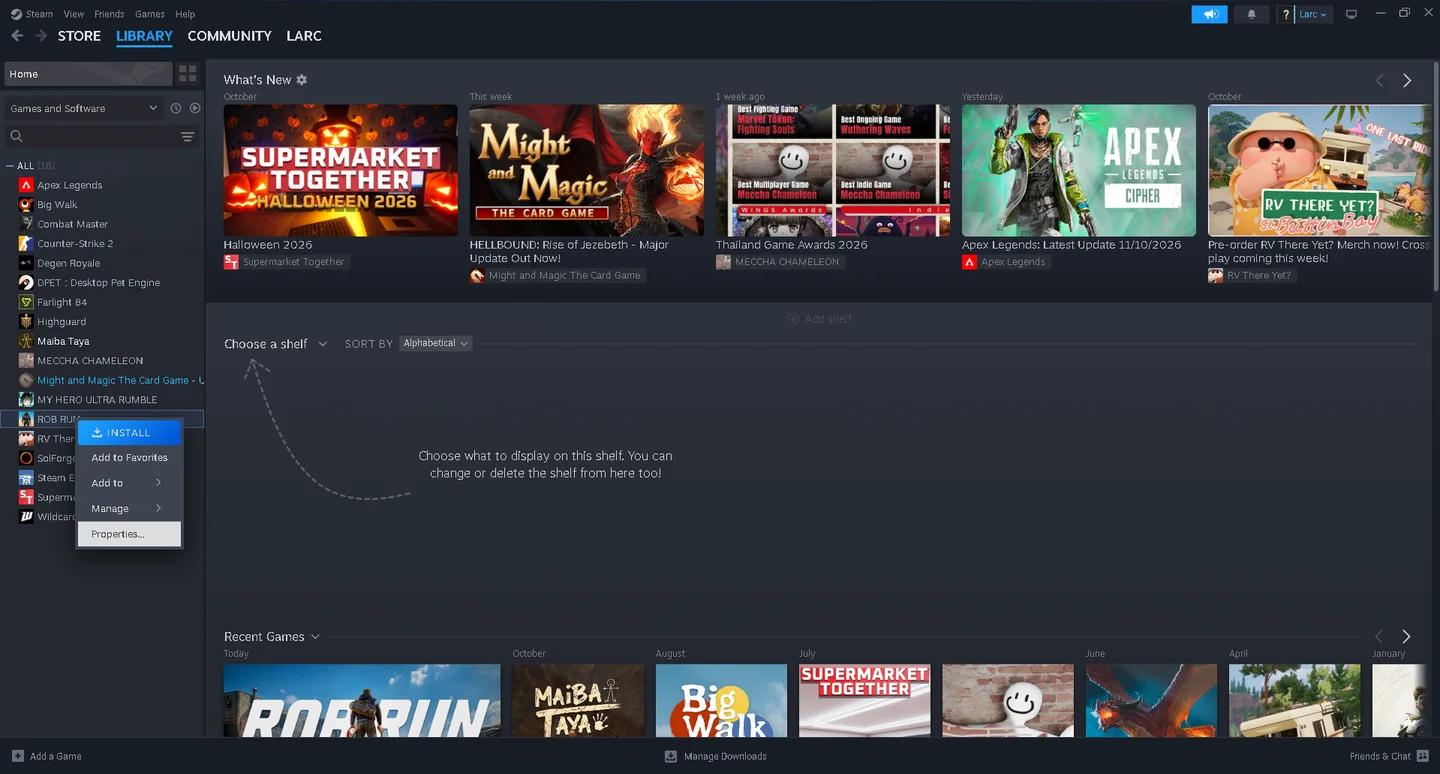
Steam's Installed Files panel
Update Windows
Open Settings, go to Windows Update, and install the latest available updates. Restart your PC, then try launching Rob Run again.
If the message remains, move to the security logs. Repeating the file check without checking for a block can leave you replacing a file that Windows still refuses to load.
Check whether Windows blocked a game file
A damaged file and a blocked file can produce the same launch message. Event Viewer and antivirus history help you choose the next repair without turning protection off blindly.
Read the CodeIntegrity log
Event Viewer records code integrity policy blocks. Look for an entry whose file path and timestamp match your failed Rob Run launch.
- Open the Start menu and search for Event Viewer.
- Expand Applications and Services Logs, then Microsoft, Windows, and CodeIntegrity.
- Open Operational.
- Find a recent entry with Event ID 3077.
- Read its description and check whether it names GameAssembly.dll inside the Rob Run installation folder.
- Compare the event time with the time of your failed launch.
Event ID 3077 means a file failed an enforced code integrity policy. The event number alone does not identify Rob Run or prove that Smart App Control caused the block.
| What you find | What to do next |
|---|---|
| A matching event names GameAssembly.dll in the Rob Run folder | Inspect Smart App Control using the last-resort section below before downloading the game again. |
| The event names another program or has an unrelated timestamp | Continue checking Rob Run's antivirus history and runtime components. |
| No matching CodeIntegrity event appears | Continue with quarantine checks, third-party software, and Visual C++ repair. |
Review antivirus quarantine
Open Windows Security, select Virus & threat protection, and open Protection history. Look for an entry involving a file from the Rob Run installation.
If a game file was removed or quarantined, run Steam's verification again to restore a clean copy. Restore a quarantined file manually only when you are certain it belongs to the game. Check the quarantine list in any third-party antivirus you use, too.
A recurring block may require an exclusion, but do not add one just because the IL2CPP message appeared. First establish that your antivirus repeatedly blocks a file supplied by Steam.
To add an exclusion after confirming that condition:
- In Windows Security, open Virus & threat protection and select Manage settings.
- Find Exclusions and select Add or remove exclusions.
- Select Add an exclusion, then Folder.
- Choose the Rob Run installation folder.
Steam's Browse button under the game's Installed Files tab opens the installation location if you need to find it.
Test a clean launch before reinstalling
If the security checks do not identify a matching block, test the software that loads alongside the game and repair its runtime components. These checks do not require a new game download.
Disable mods, injectors, and overlays
Disable any mods, mod loaders, DLL injectors, or overlay software you use with Rob Run. Older libraries can conflict with the game after an update.
Launch with those tools disabled. If the error disappears, re-enable them one at a time to identify which one brings it back. If it persists, close unnecessary background programs and verify the game files again.
If Rob Run now launches but runs poorly, move to the Rob Run PC settings for higher FPS and visibility for the separate performance problem. Graphics adjustments are not a repair for a code library that cannot load.
Install the Visual C++ runtime
Missing or damaged runtime components can prevent the library from loading. Get the latest Microsoft Visual C++ v14 Redistributable (x64) from Microsoft's own website and install it.
Restart your PC after installation, then launch Rob Run through Steam again. Use the x64 package named above for this troubleshooting step.
Reinstall only after the smaller repairs fail
Uninstall Rob Run through Steam, then install it again if verification, Windows updates, quarantine checks, a clean launch, and runtime installation have not resolved the error.
A fresh installation does not override a Windows security policy. If Event Viewer already identified a matching block, address that finding instead of repeating the download.
If you choose to remove leftover folders manually, check their contents for files you want to keep before deleting them.
Consider Smart App Control only as a last resort
Smart App Control can prevent a game library from loading when Windows does not trust it. A matching CodeIntegrity entry is a reason to inspect this feature, not an instruction to disable it automatically.
Open Windows Security, select App & browser control, and open Smart App Control settings to check its state.
If the option is missing, skip this step. If Smart App Control is already Off, it is not causing the block, so changing it will not help.
Keeping Smart App Control enabled and waiting for a game update is the safer choice. If you have identified a matching block, reviewed the warning, and choose to test with it disabled:
- Return to Windows Security, then App & browser control.
- Open Smart App Control settings.
- Set it to Off.
- Restart your PC.
- Launch Rob Run through Steam.
If disabling Smart App Control allows the game to start, turning it back on can bring the error back while the game file remains blocked.